Imagine a controller capable of scanning the color of a physical object and instantly adjusting the ambient lighting of a room or a software theme. By combining a spectral sensor's precision with the ergonomics of a rotary encoder, you can turn a simple knob into an interactive design tool.
The Smart Interface Concept: Why Combine These Two?
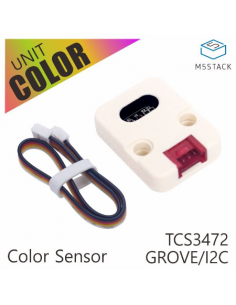
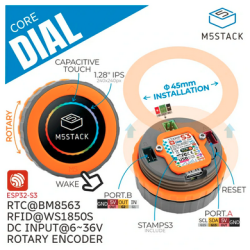
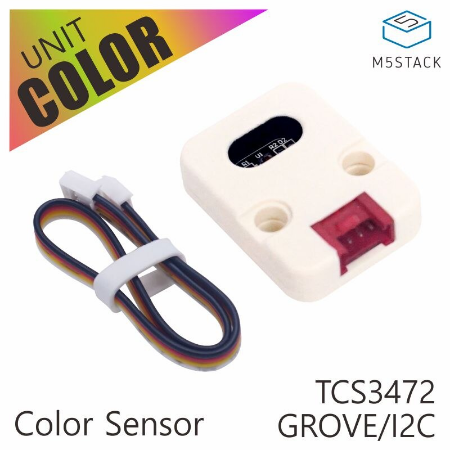
The synergy between these components lies in the separation of data capture and user interaction. The TCS34725 Color Sensor acts as the system's eye, analyzing light frequencies, while the M5Stack Dial serves as the brain and control center via its touch screen and rotary knob.
Practical Use Cases
- Smart Home: Syncing LED strip colors with the hue of a wall or fabric.
- Industrial: Creating a simplified color-sorting interface.
- Digital Art: A physical color mixer to control creative software.
Hardware Setup and Wiring
Installation is streamlined thanks to the Grove ecosystem. You will need the M5Stack Dial, the TCS34725 sensor, and a standard Grove cable.
Wiring Diagram
Connect the color sensor to PORT A (I2C) on the M5Stack Dial. The sensor uses the standard I2C address 0x29. The Dial internally handles voltage regulation to power the sensor at 3.3V, even though the Dial's main power input supports up to 36V.
Lighting Caveat
The TCS34725 features built-in LEDs that are always on. This can interfere with readings when scanning self-emissive light sources like screens. For the best results, use a physical light shield or perform tests in controlled ambient light.
Software: Reading Color and Driving the Display
For development, use the Arduino IDE or PlatformIO with the M5Dial library and a TCS34725 compatible library (such as Adafruit's).
Reading RGB Data
// Simplified RGB reading example
uint16_t r, g, b, c;
tcs.getRawData(&r;, &g;, &b;, &c;);

// Simple conversion to 8-bit format for display
uint8_t red = map(r, 0, 65535, 0, 255);
uint8_t green = map(g, 0, 65535, 0, 255);
uint8_t blue = map(b, 0, 65535, 0, 255);
Interaction via Rotary Encoder
The Dial's rotary encoder allows you to adjust secondary parameters. For instance, you can rotate the knob to modify the brightness of an external LED while keeping the hue detected by the sensor.
Advanced Integration: LVGL and Custom UIs
The M5Dial supports the LVGL (Light and Versatile Graphics Library), enabling the creation of rich graphical interfaces. Since the screen is circular (240x240), ensure you apply circular clipping to avoid artifacts in the corners.
One implementation idea is to display a color wheel on the screen: the user rotates the knob to select a target color, and the system verifies if the object scanned by the sensor matches that selection.
Troubleshooting and Limitations
- I2C Conflicts: Ensure no other devices on the bus are using address
0x29. - Accuracy: The fixed LEDs of the sensor can saturate readings on highly reflective surfaces.
- Hardware: If using the Dial v1.1, check the documentation for any minor pinout variations.
What's Next?
Once your dial is operational, explore the integrated RFID module on the Dial to create user-specific color profiles, or pair the system with a WS2812B LED strip for an immersive visual experience.